VLM Support
Before reading this document, please first read LLM Offline Inference By Python API for basic concept and process.
Qwen VL Archtecture
The major difference between VL model and LLM can be depicted from this diagram. From the following model archtecutre of Qwen2-VL, the image embdding will be generate by a Vision Encoder. The text embedding will be generated by the word embedding in LLM, and two embeddings will merged after word embedding layer based on the picture’s position (indentified by the image placeholder token’s position).
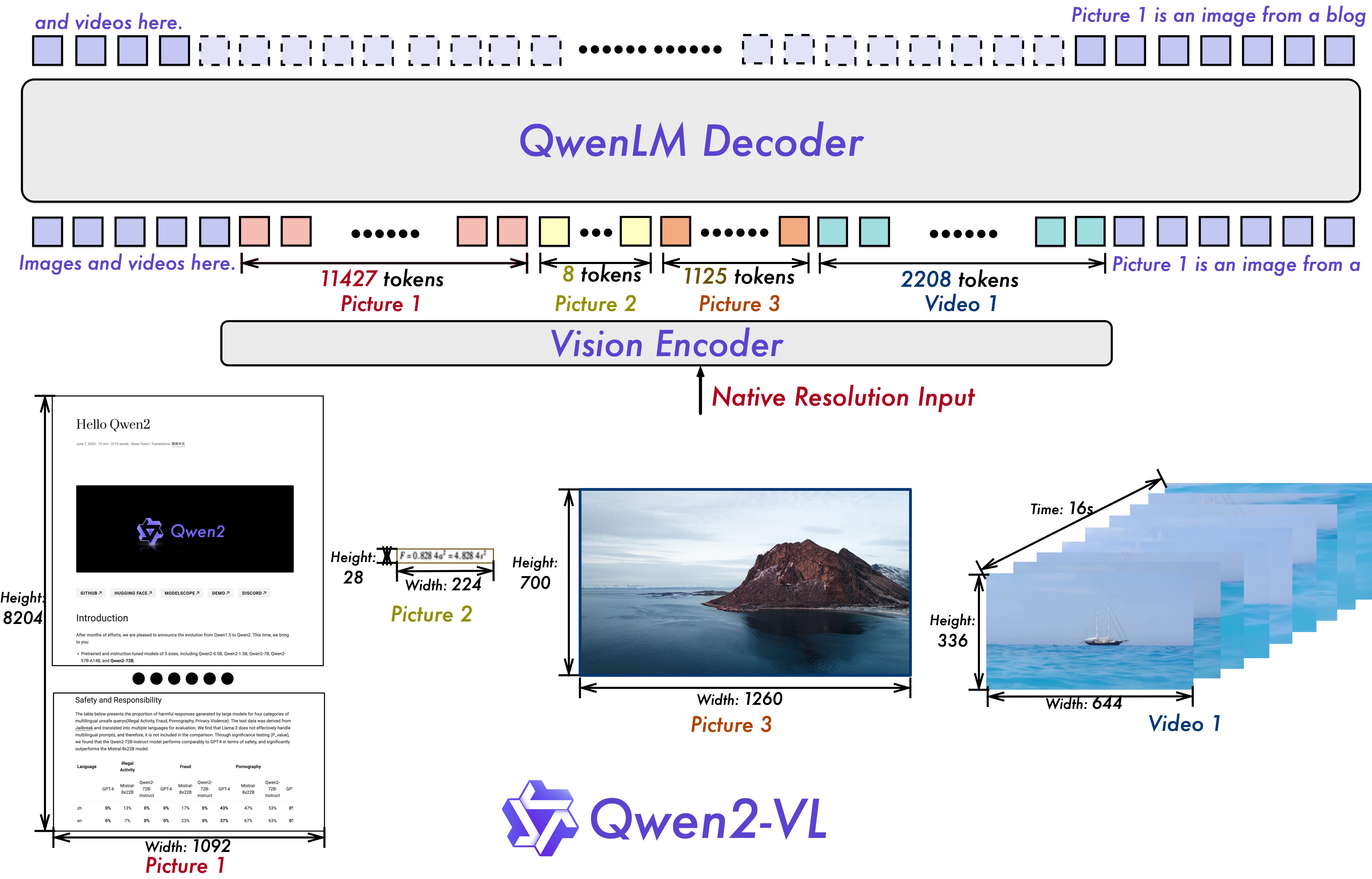
DashInfer provides full support for efficient VL model serving by:
Separate the Vision Encoder and LLM, and they can run concurrently or on different machines.
Provide a interface for Vision Encoder data, with highly optmized code to overwrite the embedding in correct place in LLM.
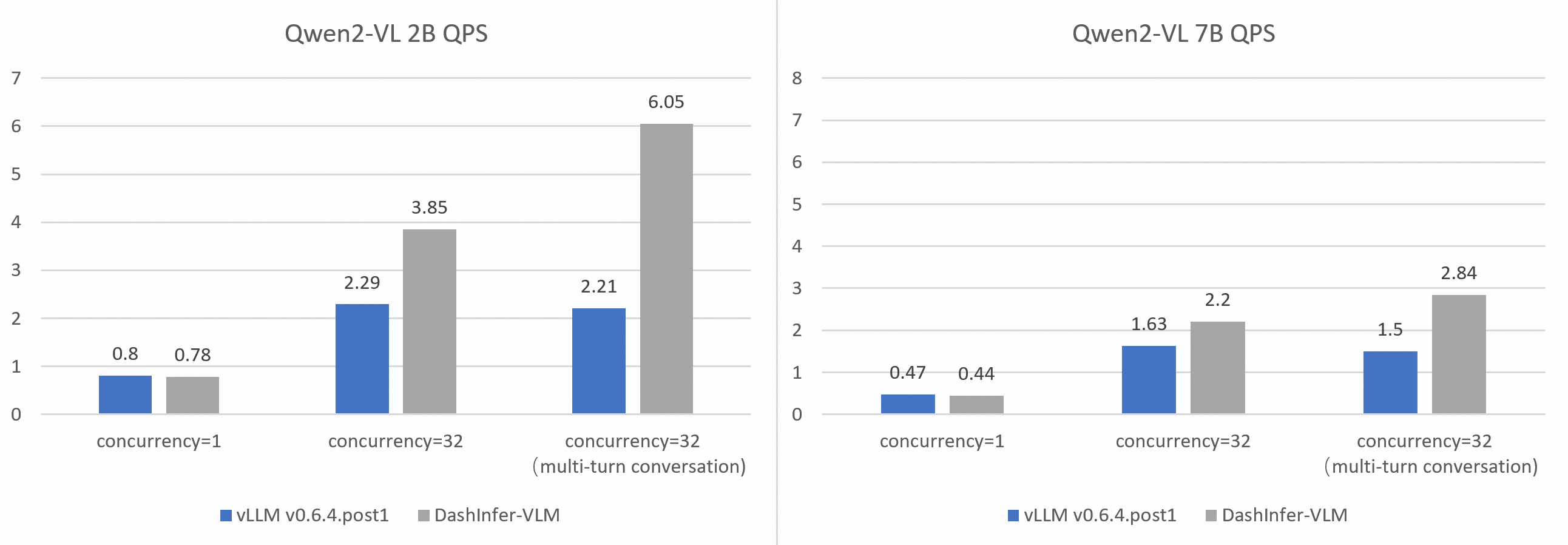
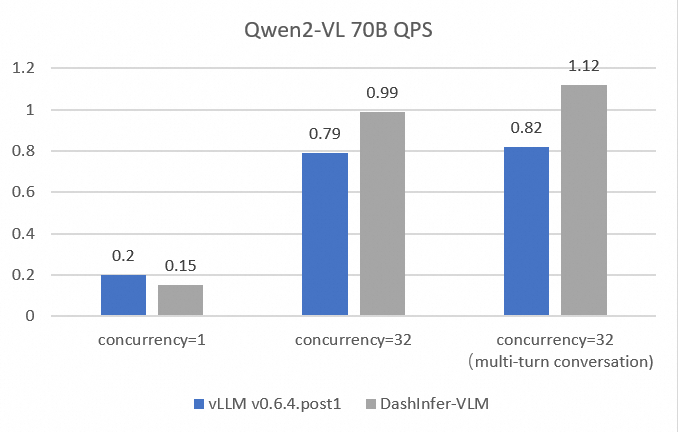
We compared the latency and throughput of vLLM and DashInfer-VLM in independent text generation requests and requests with multi-turn conversations. The results show that Qwen2-VL 2B/7B in DashInfer-VLM achieves 1.89x/2.73x higher qps than the vLLM framework.
Deploying with Docker
With dashinfer-vlm docker image dashinfer/dashinfer_vlm_cuda_124_py310, you can run OpenAI compatible server as follows.
$ export ms_model=qwen/Qwen2-VL-2B-Instruct
$ docker run --gpus all --shm-size 1g --name dashinfer_vlm_serve -d -p 8000:8000 dashinfer/dashinfer_vlm_cuda_124_py310:latest --model ${ms_model} --host 0.0.0.0
Note: You can control –min-pixels and –max-pixels to limit the image size received by the model when launching the server.
The model download from ModelScope and engine initialization may take several minutes. To check the progress, view the logs with docker logs dashinfer_vlm_serve. If you see:
INFO:     Started server process [26]
INFO:     Waiting for application startup.
INFO:     Application startup complete.
INFO:     Uvicorn running on http://0.0.0.0:8000 (Press CTRL+C to quit)
it means the VLM server is ready. You can now make a request using the OpenAI API via curl. For example:
curl http://localhost:8000/v1/chat/completions \
-H "Content-Type: application/json" \
-d \
'{"model": "qwen/Qwen2-VL-2B-Instruct", "messages": [{"role": "user", "content": [{ "type": "text", "text": "Describe the image." }, {"type": "image_url", "image_url": {"url": "https://farm4.staticflickr.com/3075/3168662394_7d7103de7d_z_d.jpg"}}]}], "max_completion_tokens": 1024, "top_p": 0.5, "temperature": 0.1, "frequency_penalty": 1.05 }'
You can also use OpenAI’s Python client library:
from openai import OpenAI
client = OpenAI(
   base_url="http://localhost:8000/v1",
   api_key="EMPTY"
)

response = client.chat.completions.create(
   model="model",
   messages=[{
      "role": "user",
      "content": [
            {"type": "text", "text": "Are these images different?"},
            {
               "type": "image_url",
               "image_url": {
                  "url": "https://farm4.staticflickr.com/3075/3168662394_7d7103de7d_z_d.jpg",
               }
            },
            {
               "type": "image_url",
               "image_url": {
                  "url": "https://farm2.staticflickr.com/1533/26541536141_41abe98db3_z_d.jpg",
               }
            },
      ],
   }],
   stream=True,
   max_completion_tokens=1024,
   temperature=0.1,
)

full_response = ""
for chunk in response:
   full_response += chunk.choices[0].delta.content
   print(".", end="")

print(f"\nFull Response: \n{full_response}")
Launching with CLI
You can install dashinfer-vlm locally and use the command line to launch the server by following these steps. We highly recommend using NVIDIA PyTorch Containers nvcr.io/nvidia/pytorch:xx.xx-py3 for setup.
(Optional when TensorRT is installed) Install TensorRT Python package, and download TensorRT GA build from NVIDIA Developer Zone.
wget https://developer.nvidia.com/downloads/compute/machine-learning/tensorrt/10.5.0/tars/TensorRT-10.5.0.18.Linux.x86_64-gnu.cuda-12.6.tar.gz
tar -xvzf TensorRT-10.5.0.18.Linux.x86_64-gnu.cuda-12.6.tar.gz
pip install `pwd`/TensorRT-10.5.0.18/python/tensorrt-10.5.0-cp310-none-linux_x86_64.whl
export LD_LIBRARY_PATH=`pwd`/TensorRT-10.5.0.18/lib
Install dashinfer-vlm:
pip install dashinfer-vlm, or install from source code
git clone https://github.com/modelscope/dash-infer.git
cd dash-infer/multimodal/
pip install -e ./
Launch server with command line:
dashinfer_vlm_serve --model qwen/Qwen2-VL-2B-Instruct
To see all options to serve your models in the cli:
dashinfer_vlm_serve -h
DashInfer API Usage
For multi-modal request, like video, audio, image request, user needs to create a MultiMediaInfo class to provide information for
engine handling those requests.
There are some difference between text request and mm request in content and invocation sequence:
Create multimedia information, specify the type and mm contnet in list of DLPack tensor.
Update it to generation config builder
You can only use
start_request_idsinterface because the special placehold id may not be supported by tokenizer.
MultiMediaInfo
The MultiMediaInfo class is used to provide multimedia information for certain use cases in generation tasks. It allows you to set the multimedia type and add multimedia content, such as embeddings or other data relevant to the generation process.
Example
Here’s an example of how to use the MultiMediaInfo class:
import torch
import os
import allspark

# Load multimedia content (e.g., embeddings)
model_path = "path/to/model"

# image embedding just for example.
m1 = torch.load(os.path.join(model_path, "emb.pt")).cpu().float()
dl_list = []
dl_list.append(torch.utils.dlpack.to_dlpack(m1))

# Create a MultiMediaInfo instance
as_extra_embedding_info_0 = allspark.MultiMediaInfo()

# Add the multimedia content
as_extra_embedding_info_0.add_multimedia_content("151859", dl_list)

# Include the MultiMediaInfo instance in the generation config

gen_cfg_builder = ASGenerationConfigBuilder()
config = (gen_cfg_builder.do_sample()
      .max_length(512)
      .temperature(0.7)
      .top_k(50)
      .update({"mm_info": as_extra_embedding_info_0})
      .build())
In this example, we first load the multimedia content (embeddings in this case) from a file. We then create a MultiMediaInfo instance, and add the multimedia content using the add_multimedia_content method. Finally, we add the mm info into generation config, the following step will be same as text requests.
Methods
- class MultiMediaInfo
- add_multimedia_content(identifier: str, content: List[capsule]) AsStatus
Adds multimedia content to the current instance.
- Parameters:
identifier (str) – An identifier for the multimedia content, the id should same as the placeholder id in id inputs.
content (List[capsule]) – A list of capsules (e.g., DLPack tensors) representing the multimedia content.
- Returns:
An AsStatus object indicating the status of the operation.
The MultiMediaInfo class provides two methods:
set_multimedia_type: Sets the multimedia type for the current instance (deprecated)
add_multimedia_content: Adds multimedia content to the current instance, identified by a string identifier and a list of capsules (e.g., DLPack tensors) representing the content.
Both methods return an AsStatus object indicating the status of the operation.